Unless you are the most organized person in the entire world, chances are you do not have a nice, neat repository of all of your software serial numbers. When you buy a new computer or replace a hard drive after a crash, those serial numbers are important to restoring your favorite software.
LicenseCrawer quickly creates a report listing all important serial numbers on a Windows computer.
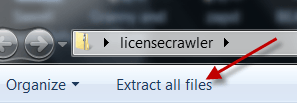
 LicenseCrawler is a 144 KB download from Klinzmann.name. Once downloaded, extract the contents of the zip file to your computer. To make this application available for all of our computers, we extracted it to our Dropbox account.
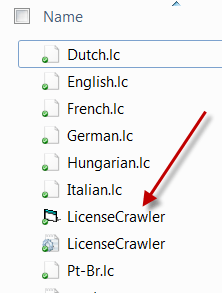
 Double-click the LicenseCrawler.exe file to run the application.
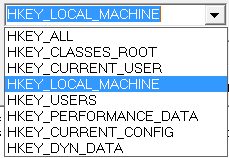
 The control window is very simplistic and easy to understand. LicenseCrawler scans your computer’s registry for serial numbers and other licensing information. The most obvious registry location for this information is HKEY_LOCAL_MACHINE. If you would like to scan the entire registry, click the drop-down arrow and choose HKEY_ALL.
 If you are running a 64-bit version of Windows, make sure to check the box next to 64 Bit Scan.
 In most cases, choosing the High Speed Scan option is fine. If you run a search and do not find the serial you need, uncheck this box and run the search again.
 Click Search to run the scan.
 You may see an advertisement for another piece of software. Click OK to close it.
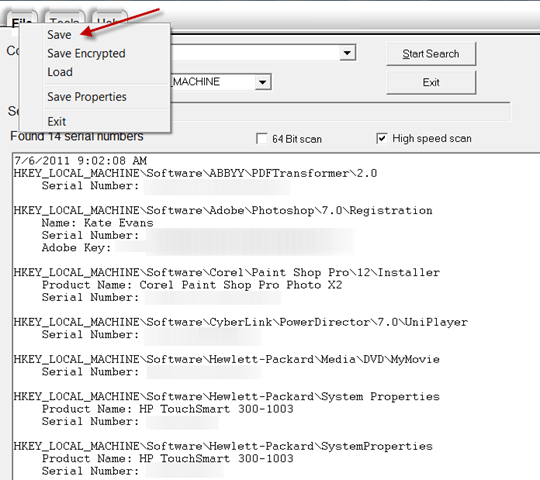
 Your serial numbers appear in the box below the search tools. To save them, click File then choose Save. Give your file a name and click Save.
 Since the saved file is just a basic, plain text file, you can back it up any way you want. You can print it and stick it in a file cabinet, email it to yourself, save it to a flash drive or store it in the cloud.
LicenseCrawler is a great tool for creating a list of your serial numbers. It works much quicker than sorting through your registry by hand. We had no problem running it directly from a cloud-based storage host or portable USB drive, making it a tool worth adding to your Swiss-army style keychain Flash drive.
LicenseCrawer quickly creates a report listing all important serial numbers on a Windows computer.





LicenseCrawler is a great tool for creating a list of your serial numbers. It works much quicker than sorting through your registry by hand. We had no problem running it directly from a cloud-based storage host or portable USB drive, making it a tool worth adding to your Swiss-army style keychain Flash drive.
